


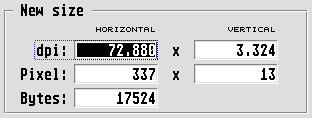
For picture size one has the choice of specifying either the resolution in dpi (dots per inch = pixels per inch), the number of pixels, or the memory requirement in bytes.
A change made to one field immediately updates the others, so for
example you can see how much memory will be required for a certain
resolution. If you can see that there isn't sufficient space free, you
can directly reduce the storage requirement in bytes so that the
picture still just fit
. The aspect ratio (horizontal to
vertical) is automatically maintained.
Perhaps the picture contains only grey tones. Selecting
grey
rather than RGB
or CMYK
immediately reduces
storage requirements to a quarter, and therefore gives more leeway for
adjusting the resolution.
And finally, possibly you want a round
number of pixels
horizontally or vertically. Just enter the required number of pixels
– it is that simple. Naturally, you can specify a horizontal dpi
resolution and the number of pixels vertically at the same time, for
instance.
The connection between the different values is:
Resolution (dpi) = (number of pixels \ frame size (cm)) * 2.54
Byte amount = number of pixels (horizontal) * number of pixels (vertical) * pixel size
(Pixel size is 1 for greyscale pictures and 4 for RGB or CMYK).
Please note that the resolution in dpi at the same number of pixels decreases as the size of a frame is increased: The same number of pixels become distributed over a wider area. Conversely, the dpi resolution rises as the frame is made smaller.
In principle, resolution may be reduced if few sharp contrasts are present, so soft transitions can be displayed just as well with lower resolutions. Hard edges such as vector elements in particular, on the other hand, demand higher resolutions - up to print output resolution.
If the frame's original content is already a bitmapped pixel image, increasing its resolution achieves nothing at first. Only if the picture is mixed with other objects of higher resolutions will a resolution increase have any effect.
Turning that around, you can save memory by reducing the dpi resolution of pictures that have rather soft contrasts.
Sometimes you may be forced to do this in order to work with or save a document or an individual picture when memory or disk space is running low.
Above all, making picture frames smaller offers the opportunity to reduce resolution – assuming that the picture doesn't contain sharp contrasts. Only then will you start losing quality.
The dialog can be exited with the buttons [Cancel] and [OK].
[Cancel] leaves the frame's original contents unchanged. [OK] converts the contents of the frame into a bitmap pixel image of the format and settings as entered. The previous contents of the frame are lost.
Note: Any possibly adjusted control curves that may be present in an original picture are incorporated in the new picture. The resulting picture always has neutral characteristics! The resulting appearance is naturally exactly the same as the original, unadjusted picture. Only the control curve settings are now permanent and can not be restored.
