


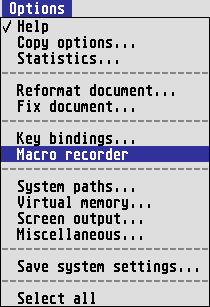
The Macro recorder allows you to record a sequence of mouse and keyboard actions and include them in the list of key bindings. i.e. assign them to a key combination. You will then be able to replay the entire sequence with this keystroke combination. This opens up a range of possibilities for automating document production. There is one exception however. You cannot record mouse clicks in the layout window, though you can simulate them using the Coordinate display.
To start the recorder, click on the menu item or type [Alternate]+[Esc]. Subsequent keyboard and mouse actions will be recorded. A checkmark will appear beside the menu entry to show that the recorder is active, and a small circle (recording icon) will appear at top left of the screen.

From now on Calamus will record all your keystrokes and mouse clicks (except those in the layout window). Click on the menu entry again or press [Alternate]+[Esc] to finish recording. At this point the following message will appear:
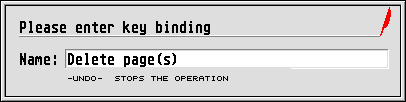
Here you can press the key combination that will later play back
the just recorded function sequence of the macro. The [Undo] key
allows you to cancel the recording function. Otherwise the function
sequence will be included in the list of key bindings, under a name
taken from the help-text for the first icon selected. You can change
this name later as explained in the description of the Key bindings
editor
menu item. If you choose a key binding which already
exists, you may elect to Replace
it, select a New key
,
or cancel the operation.
The Macro recorder can be started and stopped as we've seen with
the appropriate Options
menu entry. But because you may not
stop the recorder this way if a dialog is still open (you cannot call
any menu entry from an open dialog), Calamus offers a pre-defined
shortcut [Alternate]+[Esc] for this function. (Please refer to the
overview of all available pre-defined shortcuts in the file
FIX_KEYS.CDK in the DOCUMENT folder.)
Note: MS Windows already uses this shortcut (for task
switching in the Windows Task Bar) so if you're using the Windows
version please press [Alt]+[^] instead. The ^
character is
obtained with [Shift]+[6] on English Windows keyboards, but may be
found directly below [Esc] on some foreign ones.
When you start to record a new macro, this alert box will appear first:
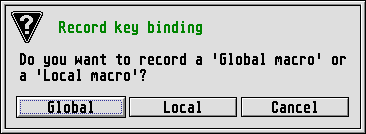
So you must first decide whether the macro to be recorded is to be
active throughout the Calamus system (Global
), or only in the
module that was active at the time the macro recorder was started (!)
(Local
); this module also has to be active when the macro is
replayed.
In case of doubt, stay with global macros at first.
When a recorded macro is playing back you will see a symbol that
resembles the Play
button on a cassette or video recorder at
top left of the menu bar:

When you have defined a macro you may save it to the CALAMUS.CKT
file. Click Key bindings
and select Save
. The macro will
be active for the rest of the current session and will be
automatically activated when you load Calamus in future.
