


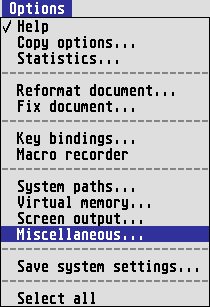
The dialog box which appears when you click on the
Miscellaneous
menu item allows you to set certain parameters
which are valid throughout the program:
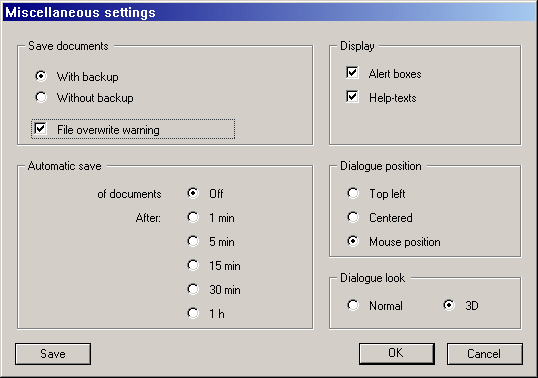
First, you can decide whether Calamus should keep a backup copy
when it saves a document. For more information, see the description of
the menu item Save
in the File menu.
If you set the switch File overwrite warning
, you will be
asked explicitely each time before a file is going to be overwritten.
Exceptions from the rule are the file menu function Save
(different from Save as
) and the Automatic save
(see
below).
You probably know that if there is a power failure when you are editing a document, or the computer crashes for some reason, you will lose all changes made since the last time you saved your work. There is only one way to limit this danger: save your work regularly. Unfortunately, we often forget about saving until it is too late. Calamus can help out here. You can decide to have the program save your document every 60, 30, 15 or 5 minutes, or even every minute, automatically to disk. These automatic saves can only work if you have named the document; the first time you must name and save it manually. To use this function, you would be wise to save and name a document as soon as you create it.
You can decide whether Calamus will show Alert
and
Help
messages. It is fairly safe to shut off Help messages if
you understand the program, but only very advanced users should
consider shutting off Alert messages. For example, when you want to
quit Calamus, an alert box gives you the chance to save your document.
The last three buttons in this dialog box are especially useful if you have a full page monitor. Due to the high resolution of such monitors, larger mouse movements are needed to steer the cursor across the screen. It can become tiresome to move the cursor from a corner of the screen to an alert or dialog box in the middle just to click on a button. This feature allows alert and dialog boxes to appear at the current mouse position. You may also make them appear at the top left of the screen near the drop-down menus and icons, or in the centre of the screen.
You can also decide whether dialogs should be shown in "normal" or "3D look". The 3D look must be supported by your operating system. If it is not, this option is disabled (generally, all MagiC versions on screens with 256 or more colours support 3D look).
