


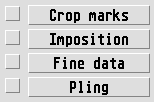
For PDF export Bridge supports all the printing modules that you are familiar with from the Calamus Print dialog.
If this icon is selected, the settings for crop marks,
registration marks and colour layer descriptions will be paid regard
to and also exported in the PDF document in the same way as for output
via normal printers or imagesetters. These settings are usually made
in the Page module, Page mounting
function group with Set
layout\Working area
. For easier access, however, the PDF export
dialog offers a Crop marks
button to call up the same dialog
directly (provided the Page module has been loaded). With this you can
alter or check the settings directly from the PDF output dialog
without having to close that beforehand.
Should the button not be selectable, then please load the Page module into Calamus.
The PDF export at present supports only the invers Imposition PRO module in the full version from Version 3 onwards (available as an optional extra).
If this switch is set, then the document will be mounted directly
during export according to the settings in the Imposition module. The
Imposition
button calls up the Imposition module to allow
appropriate settings to be defined there. The parameters not supported
in connection with PDF export (e.g. Rotate output
) are not
selectable when you call the Imposition module from Bridge.
If this switch is active, then during PDF export all fine data
of raster images currently stored externally will be incorporated and
after exporting will be offloaded again. With the Fine data
button you can call the Fine data manager module in order to define
further settings there.
Should this button not be selectable, please load in the Fine data manager (optional extra module) and try again.
If this icon is selected, the Pling module will sound a bell
after exporting is complete. The settings are made directly in the
Pling module, which can be reached via the Pling
button.
Hint: If the tinkling does not stop, press the combination of [Control]+[Alternate]+[Shift] once – as usual in Calamus whenever you want to stop an output process.
