


After a click on this icon, a dialog is shown where you can define the colours which are used in the Navigator bars.
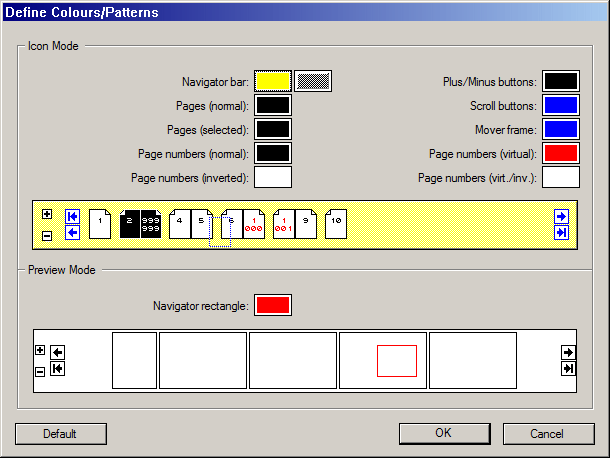
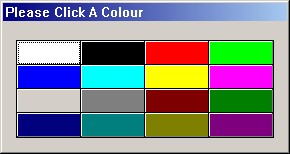
Here you can assign new colours to various elements in the Icon mode and Preview mode. All changes will immediately update the example previews. After you have clicked on one of the colour fields (or even on one of the changeable elements in an example Navigator bar!) another dialog is shown, where you can select one of the 16 system colours by mouse click.
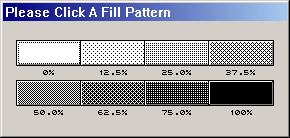
You can also change the colour intensity for the Navigator bar in Icon mode in eight steps. Click on the pattern field behind the relevant colour field. In the now shown dialog click on one of the intensity fields.
All changes in the Navigator bar colours are immediately assigned (and saved), when you close the dialog with [OK]. When you click the [Default] button, the default colours are assigned again. When you close the dialog with [Cancel], all changes which you have made in the dialog are discarded.
