


Normally, multi-page documents like books and magazines contain page numbers. This function allows you to tell Calamus what kind of number style to use for its semi-automatic page numbering. When you click on the icon, the following dialog box will appear:
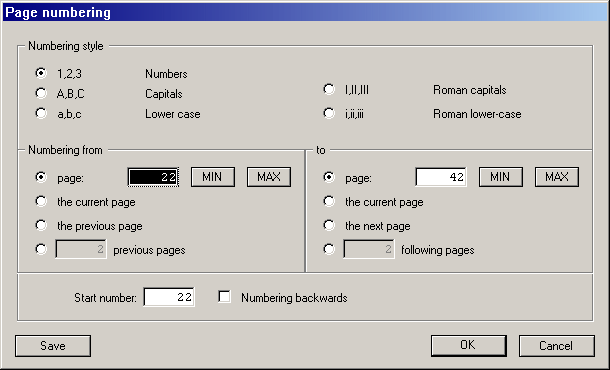
As already mentioned, Calamus performs semi-automatic page
numbering. In practice this means: Wherever you want a page number to
be printed, you insert a placeholder (see Text module, Control
codes
function group) for it in the text. When you click on
Reformat document
in the Options menu, Calamus will replace all
placeholders with the correct page numbers. If you add or delete pages
later, this numbering will no longer be correct of course. In that
case just reformat the document again.
In the dialog box illustrated above you can choose the numbering
style, and also which numbers are to be printed on which pages. The
page number printed has no connection with the physical page, i.e.,
the number shown in the top bar of the document window. All this
sounds fine in theory, but an example is required: First, there must
be a text frame on every page, and the text frames must contain the
control character for inserting the current page number (see Text
module, Insert page number
). It is best to create header or
footer frames for this purpose on the master page (see below). Now,
click on the Page numbering icon. Enter 1
for the Start number.
Clicking on [OK] will close the dialog box. Now, the appropriate page
number will appear on every page.
Next, insert a page into your document. The header or footer frame holding page numbers appears as you would expect (it is present on the master page, after all), but there is no page number in it. Instead you will see three question marks there: ???. You can fix that by clicking on the Page numbering icon once more. Confirm the dialog box settings by clicking [OK], and there will be a page number on the new page.
If the numbering is not to be continuous because, say, you plan to
add further complete page(s) later, you can enter the range of
physical page numbers (i.e. those shown in the top bar) that
are to be numbered in order in the Page numbering dialog box. Then
enter the (printed) page number for the first page of this range in
the Start:
edit field.
