


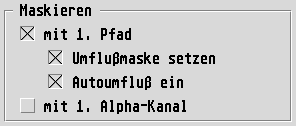
If alpha channels and/or paths are read in from an imported image file, Tiffie offers the option to use these elements for automatic masking of the actual image. The result will be the ready-masked image and perhaps also any left over paths or alpha channels as separate frames. (Naturally you can also remove this masking later by dissolving or ungrouping the created mask group.)
If only the option With 1st path only
is active, then the
first path found will be used as an image mask.
Warning: If a working path is imported, then this is always the first path!
On the other hand if the with 1st alpha channel
option is
switched on, then masking will take place with the first additional
channel of the TIFF file.
Naturally you can also activate both main options at the same time: Then the first path will be tried originally; only if no path exists will Tiffie look for masking from the first alpha channel.
If neither of the main options is selected, then the image will not be masked. The same applies if the desired path or channel does not exist in the loaded image.
When masking with 1st path only
there are two further
options:
Auto-flow onframe attribute for the frame group of the TIFF image plus the mask(s) will be set directly during import. This quickly allows you to achieve the effect that, for instance, a TIFF image cut out in Photoshop will not just appear cut out again directly on importing into Calamus, but can also have text frames flowed around it automatically.

