


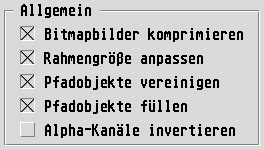
In Calamus SL documents, all bitmap images (i.e. black & white or duochrome graphics) are normally stored in compressed form. Thus you can always leave this option active as a rule. However, there are some cases where it may be sensible to use the images in an uncompressed state. Compression makes no difference to the display or the working method in the layout.
This option ensures that during image import Tiffie always
restores the original format and the original proportions
automatically. Warning: For this to work correctly, you have
to switch off the import automation
for images in the Frame
module! (Frame Editing module, select Raster Graphics Frame icon and
then click in turn on the Special Functions and Set import
automation
icons: In the following dialog, activate the never
execute
radio button). Otherwise the automation would alter the
size subsequently!
If this function is not switched on, then during import the frame at first retains its previous size. With import automation switched on, however, it will be adapted subsequently to the current printer resolution.
Each of the paths present in an image may consist of several partial paths. During import Tiffie creates from each image path its own vector graphics frame, in which the partial paths are stored as separate path objects in each case.
During automatic masking with an image path, Tiffie normally (with
the Combine path objects
switch off) makes all portions of the
image visible that lie within any of the partial paths. In places
where the partial paths overlap, the image contents is also visible.
The advantage is that you can piece together
the mask from
several curve portions. The disadvantage is that it is not possible to
create holes
or gaps with them.
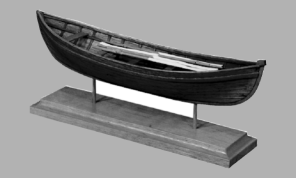
On the other hand if the Combine path objects
switch is on,
then the individual partial paths will be united into a single path
object. During this the curve portions combine in such a way that
overlaps are cut out. This also allows holes
to be created in
the mask.
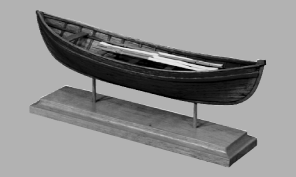
If this switch is set, then all paths will be drawn filled with black. This is important if you want to use the paths for masking without using automatic masking.
Alpha channels are normally used as masks. However there are differences in the interpretation of the masking process between different applications.
In Calamus, masks generally work in such a way that where the mask is dark the underlying parts of the image are visible. In the light areas of the mask the image becomes invisible.
In other applications the opposite method is often used: Here the dark areas of the mask become transparent.
So if you want to import images from such programs, you should set this switch to on. In that case the alpha channels will be inverted as they are read in, and masking applied as desired will be included in the document.
Tip: Naturaly you can still invert the mask after
importing. Just click on the Invert mask
icon in the Frame
Editing module, available after selecting the Group masks
icon
and then Special functions
.

