


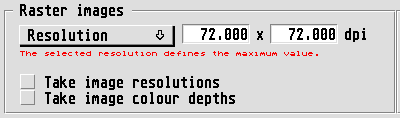
In this part of the dialog you can define the resolution and
colour depth for all raster graphics that are to be exported. If you
are uncertain what resolution and colour depth your images have, just
activate the two checkbox switches Use raster image resolution
and Use raster image colour depth
. Then no data will be lost
during export.
But if you have created a document with images at 1,000 dpi
resolution and you want to, say, create a PDF file for a b&w printer
with a maximum resolution of 600 dpi, it makes sense to reduce the
resolution of images to 600 dpi, too. Click on the popup
Resolution
and select the required resolution in it. If the
desired resolution is not available there, you might enter it in the
edit fields right to the popup directly. The first value describes the
X resolution of your printer, the second one stands for the Y
resolution.
Hint: If you find that you often need a resolution not
present in the popup, you can make this up in the Settings
function group. Click on the Resolution setup
icon there.


