


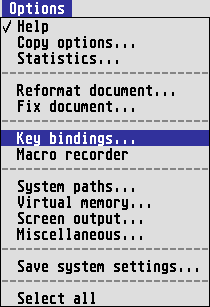
Calamus is well-known for its powerful macro recorder which allows you to record nearly every action which can be made in dialogs, menus and function panels, or performed by pressing keys on your keyboard. These macros can then have keys or key combinations assigned to them, which can in turn be used to control almost every function in Calamus. Performing complicated and lengthy actions with a single key stroke tremendously increases your work speed – once you have understood the concept.
Macro professionals who really scoot along at a very high work speed using every single feature of Calamus enjoy the separation of global and local macros.
Calamus functions can be accessed via keyboard or mouse. Whenever
the mouse is over a function (an icon or menu item), the key binding
for accessing that function will appear in the Top row (see
Coordinates bar
). This Key bindings menu item will display all
key bindings in the form of a list.
When you click on this menu item, the following dialog box will appear:
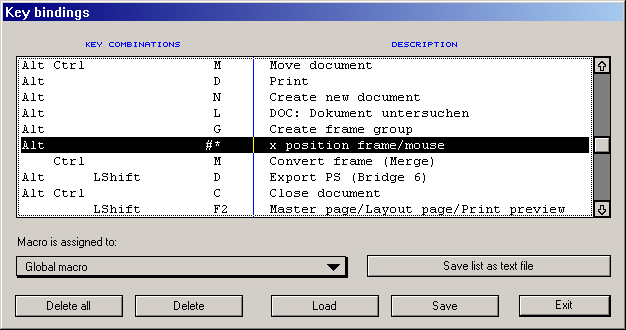
The start of each row specifies which key or key combinations have
to be pressed to execute the listed operation (the Key
bindings
). The abbreviations C
, A
, LS
and
RS
stand for [Control], [Alternate], [left Shift] and
[right Shift], the modifier keys that have to be held down while the
hot key
specified in the next column is pressed. Note that
Calamus can have separate assignments for the [Shift] keys at the
bottom left and right of the keyboard.
The final column shows a description of the function that is called by this key combination. So look at the following line of the list, for example:
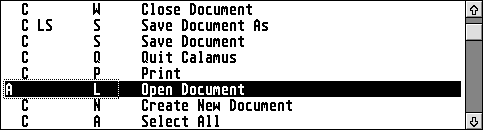
This means that if you type [L] while the [Alternate] key is held
down, Calamus will call the file selector to load a document, just as
if you had selected that function from the menu. There is an exception
from this rule:
A combination like
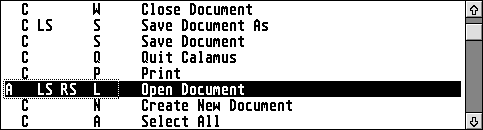
means that the function Load page
can be executed with the
key [L] together with the [Alternate] key and either left or
right [Shift] keys. You do not need to press both [Shift] keys
together.
The explanatory text can also be edited. Double-click on the entry in the list and you can alter the text, then press the [Return] key to have it accepted.
The buttons at bottom left of this dialog allow you to delete
individual key bindings or even (CAUTION!) all of the key bindings.
You can also save or load the list of key bindings to/from disk. To do
this click on the corresponding field; for deleting a key binding you
have to click on the desired entry beforehand. After clicking on the
fields Load
or Save
the file selector will appear,
allowing you to enter the desired filename or select an old one.
Below this you are offered the option of saving the list of key bindings as a text file for printing out as a quick reference.
